We remain fully operational. Our teams are working around the clock to ensure your deliveries continue safely.

DOWNLOAD THE APP


Customer Services
Copyright © 2025 Desertcart Holdings Limited
DOWNLOAD THE APP

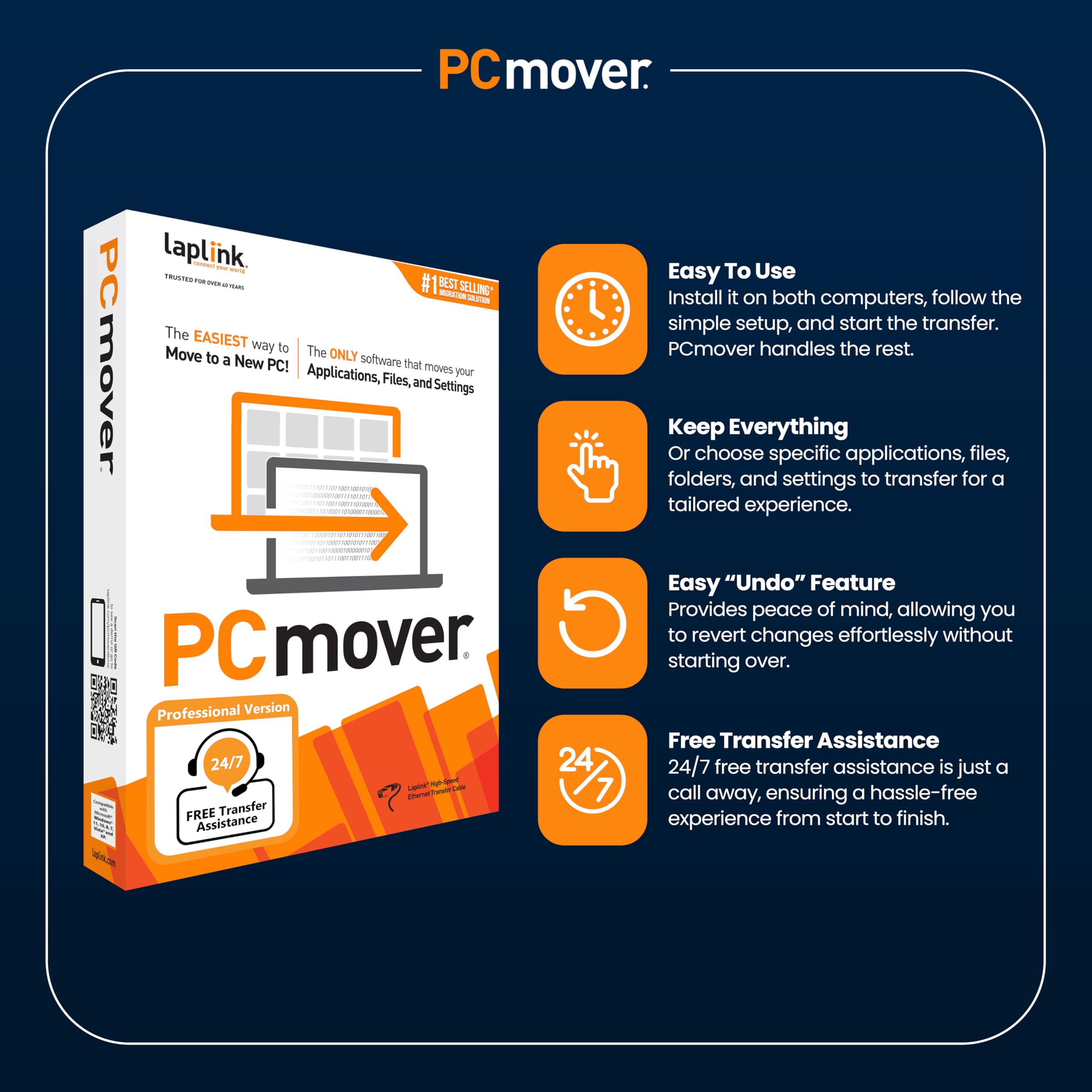

🚀 Upgrade Your PC, Not Your Headaches!
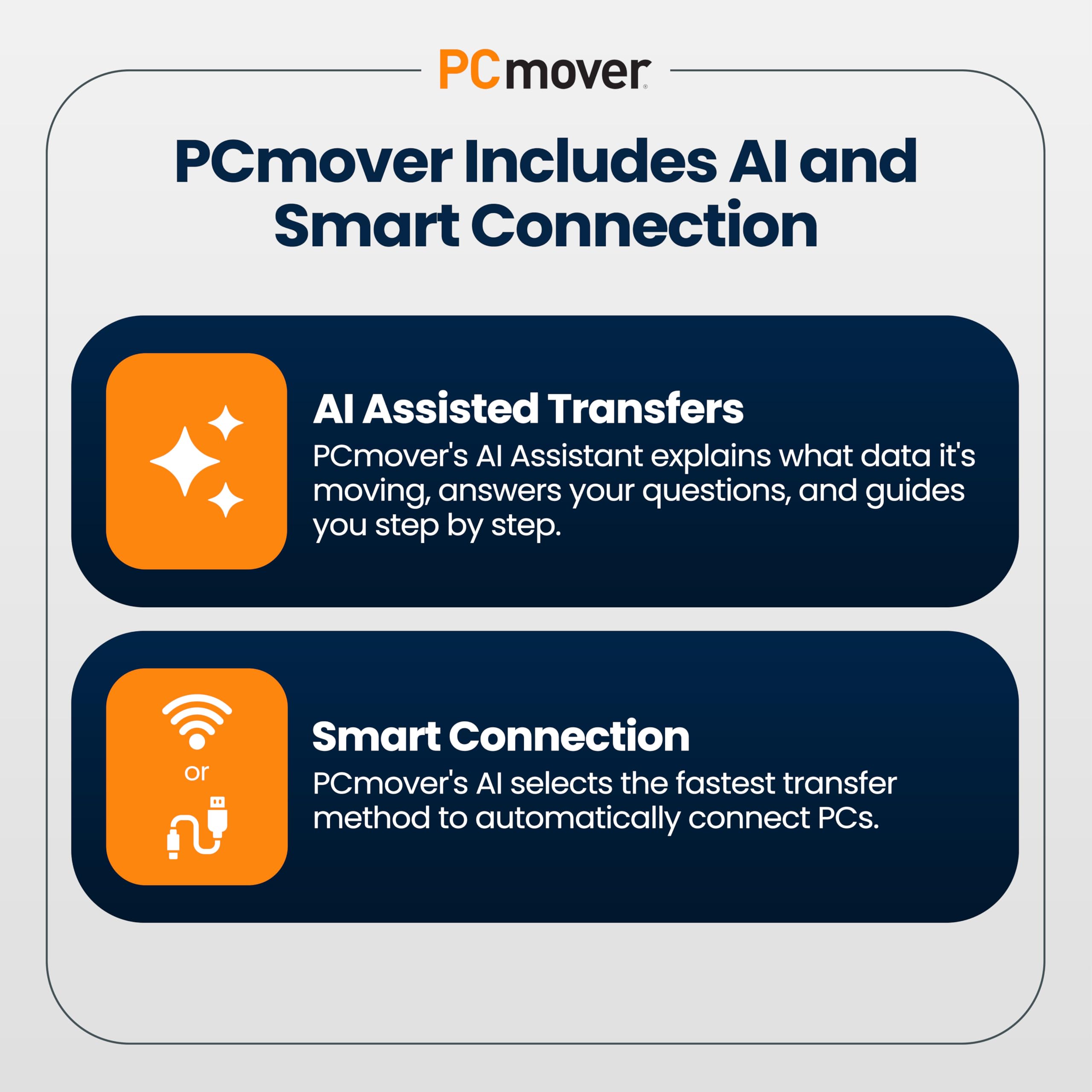
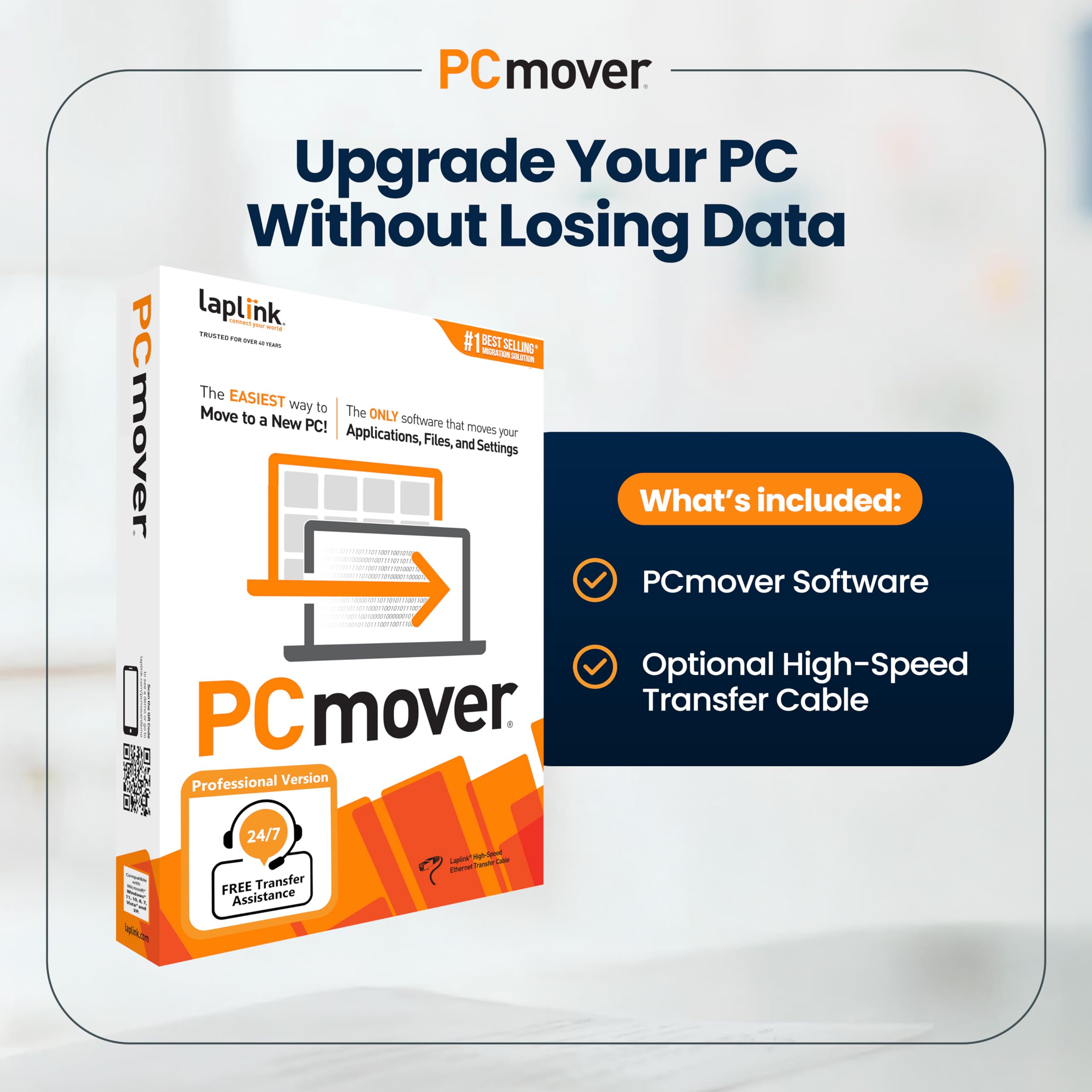
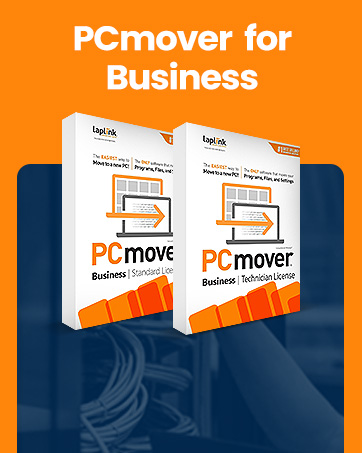
Laplink PCmover Professional 11 is the ultimate data transfer software that automatically migrates your applications, files, and settings from an old PC to a new one. Featuring AI-assisted transfer insights, Wi-Fi Direct for high-speed connections, and full compatibility across all major Windows versions, it offers a seamless, customizable migration experience trusted by Microsoft and Intel. One license supports unlimited transfer attempts between one source and destination PC, making it the go-to solution for efficient, error-free PC upgrades.






O**D
Best way to move an user environment to a new PC - IMO
Having Used Laplink at work (many many years ago) to image PCs as we installed them I felt I could trust the software to move a Windows 10 environment to a new Windows 11 PC. There were many games (both online and local disc) to be moved so I expected a lot of work post transfer. I was pleasantly suprised when most of them transfered with only a login required to get the game up and running again. MS Office transfered without a complaint as did all other 'productivity' progs. The instructions for use, both the online guides and the program as it ran, were easy to follow. I must admit that I expected a more complicated process with more manual intervention but I was delighted when just letting it 'do its thing' produced such excellent results. This may seem expensive but it saved me hours of work and eliminated any human error. I wholeheartedly reccomend Laplink PC Mover!
F**E
Successful, excellent support, read the instructions
My third successful 'Windows PC to Windows PC' transfer using this product for over 10 years. First from an Windows XP to Windows 7 PC, then to a Windows 10 PC and now another desktop upgrade using this latest version, PCMover 11 . Around 3 - 6 years between each hardware upgrade. As with previous transfers, PCMover does a good job moving your apps and user accounts overall and this saves a lot of time if you are the kind of person who likes your PC set up in a particular way. The more complex your setup, the more you will benefit from this software. If you have older Apps that are no longer well supported online or no longer have the installation discs like Quicken 2000, Logitech Media Server with third party plugins, this method of transfer will keep you functioning effectively whenever you need to upgrade your hardware. For me, this transfer was particularly easy as many apps like MS Office 2016 now also have perpetual licences so are easy to authorise/verify on the new device after the transfer. I learnt from previous PCMover transfers that Antivirus programs like McAfee can cause issues. So I did a full uninstall (including use of the MCPR tool) on the target PC which was bundled with a trial version before starting. There was no need to uninstall on the source PC as the software defaults to not attempting to transfer this app. The online chat service was very prompt and helpful in sorting out any questions or ambiguities of the choices available on setting up the transfer. A flexible option to be aware of (if you have the time and inclination) is that you can opt to transfer parts of your system at a time as the single use licence allows for unlimited attempts between the same source and destination PCs. Be prepared to leave some time after the transfer to check all is well or tweak the options to make use of any hardware advances that your new hardware offers. On this occasion, my source PC had its User folders on the D:Data drive, but the new target PC has a much larger and faster C:drive which was perfect as PC Mover defaults to putting the Users on the C: drive. I just had to make sure that the rest of the User data was also on the C: drive. Whilst I found that some software 'bugs' were ironed out by this method of transfer (specifically, issues realted to MS Windows, as your system will be based on the latest version of Windows with your new PC), other 'bugs' or issues that relate to other third party apps like Apple might continue to be present on the target PC and have been 'transferred over' too. These may need uninstall and reinstall to resolve. The 2 TB size move was completed in half a day and any minor software tweaks over the following day. Overall a major time saver for me, allowing me time to write this review!
S**5
Quick delivery good price but poor for transferring all files.
Don’t believe that they transfer all files etc. some parts are very good but the most do not get transferred to a new PC.
M**D
Software Ok. don't bother with Boxed version just download
Software does pretty much what its says, Some programs didn't move such as MS Office/Outlook but once reinstalled all of the emails and setting where already there. What you get in the box is less useful. The CD is out of date so once installed the first thing you need to do is go online and update the software on both machines, so you may as well download in the first place. Also in the box is an Ethernet cable (null modem) so you can connect both machines without a switch or router, if you are using this on laptops with WiFi it is fine, however if you use your ethernet port for internet it is much less use as you have to have an internet connection to 1) Update the software 2) Validate the licence. (validation can be done on any internet connected device but involves typing long licence numbers and validation codes). Software 9/10, CD and cable 3/10
G**N
Use this product at your peril!
This software needs serious revision from top to bottom to make it fit for purpose - using it and relying on its result could be very dangerous for your data and system integrity. I built a new PC so I needed to move applications, settings and data from the old PC to the new PC - exactly what this product says it is designed to do. Installing on both computers was easy. However, the first potential problem started at the beginning. After analyzing the old PC a table popped up asking which applications and data did I want to move. There was a colour coded table of how many things were in each category. I unticked everything I didn't want to move and ticked everything I wanted moved. I submitted my selection. First problem - the number of items in each category to move was not updated. I assumed a stupid programming omission and started the transfer. My old PC crashed 3 times during the transfer (that's part of the reason I built a new PC!). Each time it crashed, when I restarted the transfer software it said I would need to start the whole process again - it has not kept a note of my original settings! I reset the settings and restarted. Luckily, there was some checkpointing going on in the background as the time to complete the transfer decreased with every restart, so it didn't start again from the beginning each time. My old PC has several disk partitions and PCmover recognised those and indeed part of the setup process involves deciding which partitions to transfer Eventually the software told me it had finished. I looked at the result. PCmover, although it recognized all the partitions on the old PC did not set them up on the new PC - big problem. It had placed each partition in a separate folder in one partition! I had to build the partitions on the new PC manually, then copy the contents of the folders into the correct partitions - that took some time. Also, I discovered that PCmover had not correctly identified all applications in the list I was given to choose what to move and what not to move. It moved several applications it had neither identified in its list of what to transfer so the new PC contained several applications I had not selected and did not want transferred. Some of the applications it did transfer and I wanted were broken and I had to reinstall manually. The final report/log of what had been transferred was useless since it only included everything from the final transfer restart ignoring everything it had transferred in previous attempts. The worst is yet to come! On using my new PC I have discovered many instances where PCmover set up folders on the new PC but failed to populate those folders with the contents from the old PC! This has resulted in a potentially catastrophic loss of data - some of which I may not disciver for months! It is going to take a lot more time to sort out the mess created by PCmover. I am seriously considering consulting a lawyer about taking action. Any attempts to escape liability in standard terms and conditions are likely to be void by the Unfair Contract Terms Act because using the software resulted in creating an additional enormous workload. It is my view that this product should not be on the market until such time as Laplink can provide a tool that does the job properly and completely and does what it says on the box. You have been warned!
P**N
Set and Forget
This is a great application that does exactly what it says on the box. Installation is easy and to run it is a breeze. I did it connected to my old laptop via Wi-Fi. It's a set and forget app and the finished result? My new lappy looks and feels just like my old one with the familiar desktop, folders and apps all where they should be. Two things though: 1 - My stuff took 23 hours to transfer. OK, there was a lot of it and it was via WiFi and 2 - The cable supplied for direct connection had a RJ45 connector at each end and not many laptops these days have RJ45 sockets. Apart from that, superb result. It achieved in 23 hours what would have taken me days to do by hand. Cost out my time by an hourly rate and this is a real bargain 👌 Highly recommended.
G**F
For me, a waste of money...
This product was not useful to me. I only bought it because my laptops have incompatible disks, making direct disk cloning impossible. Although it transferred some software ok, it did not properly transfer user profiles or critical items like Visual Studio and SQL Server - so I ended up reinstalling pretty well everything from scratch.
Y**R
Easy for this novice to use! 5*
This product is brilliant! I'm a complete novice when it comes to tech and I had no clue what I was doing. With the clear instructions I was able to download the programme on both laptops, connect them both with the cable provided, run both programmes and transfer all apps, data, files, pictures, music and passwords. The only thing not in the instructions was the fact that you had to switch off antivirus and firewall for the transfer to work. I managed to learn how to do that with a YouTube video. I highly recommend this product, it was smooth and fast for this noob!
Trustpilot
2 weeks ago
2 weeks ago