🔐 Own your security, skip the subscription — smart, savvy, and in control!
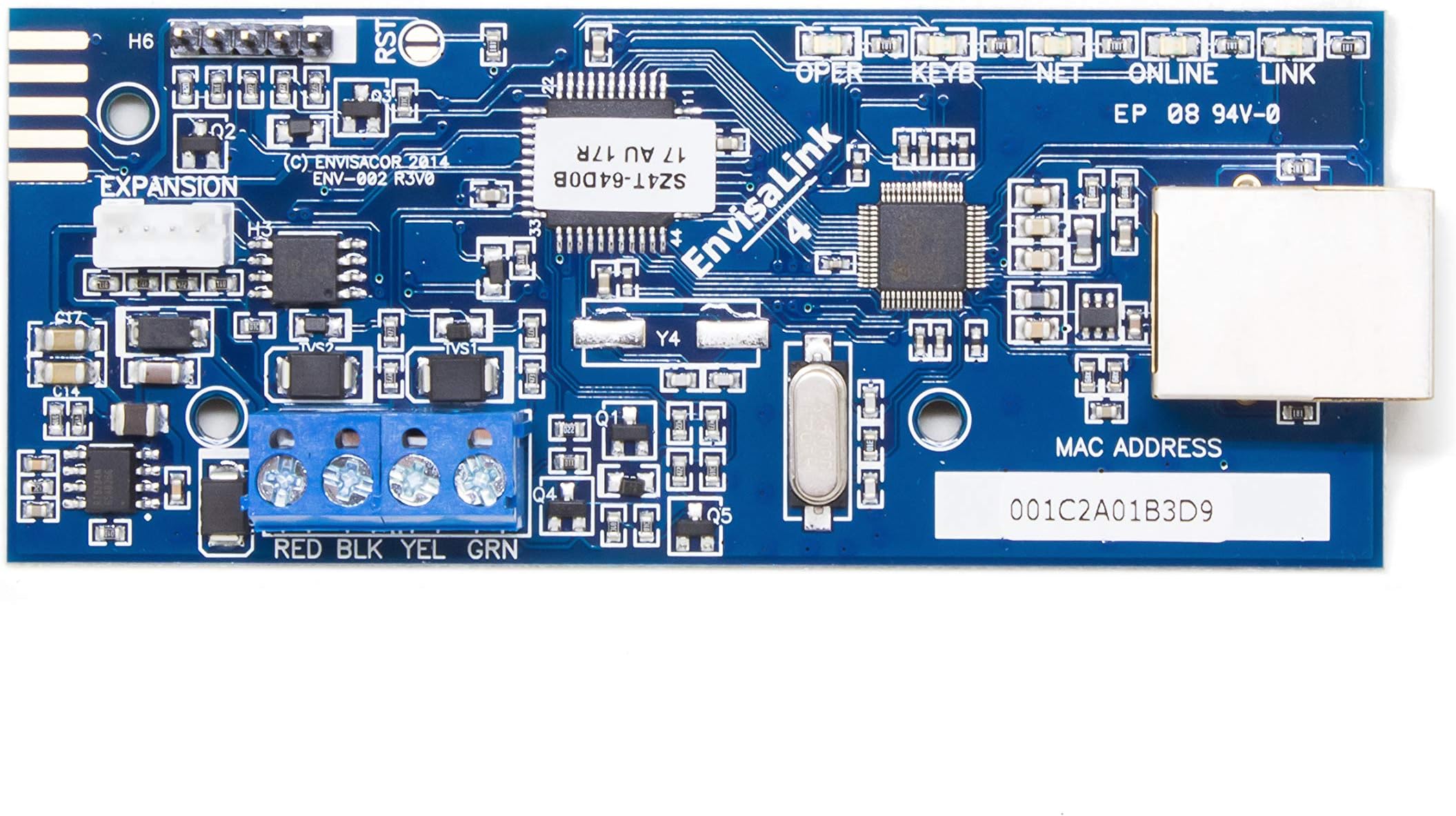
The EyezOn Envisalink EVL-4EZR is a wired IP interface module that upgrades Honeywell Vista and DSC security systems with professional UL-rated monitoring capabilities. It enables real-time remote control and notifications via LAN, supports Alexa voice commands, and integrates with Home Assistant for smart home automation. Designed for DIY installation, it eliminates monthly fees by empowering users to self-monitor their security systems with instant alerts and full zone management.
| ASIN | B016WQTJ4S |
| Alert Type | Motion |
| Antenna Location | Cellular Phone |
| Best Sellers Rank | #106 in Home Security Systems |
| Brand | EYEZON |
| Compatible Devices | Honeywell Vista, DSC, Alexa |
| Connectivity Technology | Wired |
| Connector Type | RJ45 |
| Control Method | Remote, Voice |
| Customer Reviews | 4.4 out of 5 stars 1,464 Reviews |
| Installation Method | Self-Adhesive |
| Item Dimensions | 4.7 x 3.1 x 1.2 inches |
| Item Height | 1.2 inches |
| Manufacturer | EyezOn |
| Model Number | EVL-4 |
| Power Source | Corded Electric |
| UPC | 181875000040 760999031644 |
| Unit Count | 1.0 Count |
| Voltage | 1.5 Volts |
C**D
Great little IP communicator for Honeywell Vista
After yet another price increase with ADT, and yet another cell communicator being obsoleted (in just a 3 year period), plus not having control over my sensors or being able to add any new sensors myself without having an ADT technician do it for me, I got fed up with ADT and decided to look for alternatives. Having read all the positive reviews about Envisalink and particular with its integration with Home Assistant, I decided to cut ties with ADT, reconfigure my Vista systems by swaping out a 15P with a 20P and added a zone expander so that I can monitor all rooms as separate zones (rather than having all my doors lumped into one zone and three bedrooms lumped into another zone... thanks ADT, that's REAL helpful), and installed the Envisalink 4 as well as the Sidekick LTE backup communicator. Installation went smoothly and there are plenty of reviews here and good instructions from EyezOn that give the lowdown how to do it all. Got connected to EyezOn's website with no issues and it even picked up my Sidekick even before I started a subscription for it, so it's nice knowing that it's getting a strong signal and connecting successfully. The integration with Home Assistant works great too. Although currently the integration is done by old-fashioned yaml configuration only and not UI yet (as of the 2021.6.1 version), it's pretty simple to setup and now I get near instantaneous sensor status and arming/disarming locally over my LAN. A couple of caveats I ran into: I had a spare Vista 20P board sitting around. When ADT upgraded me to Pulse a few years ago, rather than swapping my current Vista 15P out for the 20P (and getting me two extra zones), the technician just swapped the chip out into the 15P to give it Pulse support and handed me the 20P and say "here, this is yours to do whatever you want". So I saved it as a backup. When it came time to switch to Envisalink, I dusted off the board and put it in my panel. Since it had no chip, I bought one labeled with version 10.23 off of eBay (newer is better, right? WRONG!). Turns out that the latest 10.XX for ADT are meant to support their latest generation of communicators and break compatibility with older and third-party communicators. I kept getting "103" error messages and "Incompatible Communicator" messages on my 6160 keypad display. After e-mailing EyezOn support, they told me the bad news that the 10.XX versions are not compatible with their communicators. I swapped the chip out of my old Vista 15P board with version 9.12 into the 20P, and it fixed my communication issues! So be sure to use a chip with version 9.XX or below. Second issue was with my VLAN setup. I have a pfSense router and segment my network into multiple VLANS. Security systems and cameras get their own VLAN on my network. Turns out that you can't connect to the Envisalink from another VLAN if the password is set to the default "user". So you'll need to either start out with your computer/laptop/cell (whatever you're connecting to the local Envasalink webserver with) on the same VLAN first, change the password to something else (6 digits is the limit for the Envisalink 4 I believe), then put it on it's separate VLAN. This goes for both accessing the local web server as well as for the Home Assistant integration. To get Home Assistant to access it from another VLAN, I simply add a firewall rule to allow the HASS server IP to access the Envisalink IP on port 4025. Hope that helps for those who run into these same issues. Everything works great for me now. It's nice to have professional UL rated monitoring for a fraction of the cost of ADT plus have better local Home Assistant integration, and have total control over maintaining my own security system myself.
S**H
Easy to use and still going after almost 3 years
2021 Update: I just wanted to chime in on this device. It's still working great after 5 years now. Even though it connects to an external website which might be of a concern, the website is still in operation and the Android App still works great. This card is the easiest way that I've found to connect your existing alarm-system to your own control rather than paying a monitoring company like ADT/Spectrum/AT&T to monitor your system. Everything is done via your phone App, and there is very little delay. YOU do the monitoring and you don't have to pay $30+ a month to a company that basically will do the same thing. There are other ways to do the same thing that involve a lot more DIY knowledge, but take a lot more knowledge in networking and programming alarm systems. The newer systems do a lot of this for you already built-in, but why pay for new technology when the old stuff works? From a privacy and security perspective, which would you rather have? A system that is used by thousands of people subscribed to one of the monitoring services which uses identical equipment in all of its installations -- or would you rather have your existing older device connected to the Eyez-On control card which is fairly obscure when it comes to devices? There's no absolutely 100% "unhackable" device, but I'd rather have "security through obscurity" that this device offers. It won't prevent a targeted and well-motivated attack, but it should be *different* enough from the huge numbers of well-known and most-used devices to make it too difficult to bother with for the casual cyber-criminal to bother with. Just make sure to use this with a home router with decent security and IMO it's better than anything you can get by paying for a monitoring company. A side note as well. In my city, you need to register your alarm-system with the local police in order to be able to have them check out the house whenever an alarm is triggered. If a system is monitored by a company like ADT, etc., they will attempt to verify whether it's a false-alarm or a real break-in either by using an intercom built-in to the alarm-system, or via a contact phone. If they can't reach you, then they'll report an alarm to your local police, who will then come to investigate. With Eyez-On, I am still able to register my system as an owner-monitored private system with the same benefits. If an alarm were to be tripped I would be notified and then I could call the local police and report the break-in the same way that the monitoring company would. Or I could call my neighbor who would relish the opportunity to confront an intruder -- but he's an ex-marine with a small arsenal at his disposal. Also, having a monitored alarm-system will sometimes get you a small discount off of your homeowner's insurance. It works for my homeowner's insurance, but it might not for all insurance companies, so check first if this is important to you. Original Review: I bought this in December 2016 along with a TP-Link WiFi extender. It's been almost 3 years and it works great. I've got the Vista 20P system and the app hasn't changed much. I'm still happy that Eyezon keeps the app updated and that I still get instant text messages and notifications with any change to my system. It's very easy to set up, but you need to have some working knowledge of how the system works. There are many videos that you can find that will show you step-by-step instructions on how to hook it up and which wires to connect, etc. It's not plug-n-play, but very close. If your phone doesn't say Apple on it, then you'll probably have no problems with the app, connecting this board to your network, and generally will find it simple. If you're an iPhone user, then expect frustration. Yep, that's what I meant to say. That said, it does seem a little pricey, but think about the savings over a pay-by-the-month "monitored" system. We used to have Time-Warner monitored service, and this is the same thing, only faster and better, and FREE. Time-Warner would get a signal from your system that the alarm was tripped, then they would call your home, then your cell to ask if you needed the police/fire or whatever. This device does the same thing, except instead of a call from a bored/tired/apathetic Time-Warner Security Representative you get a notification on your cell phone (and/or a text message if you prefer). Yes, there are better home security systems, but only marginally better. Yes, you can do the same thing with a custom-built Raspberry Pi and a WiFi extender, but this is much easier. The only downside is that this still relies on a 3rd-party website/server to provide the notifications and texts. If they made a version that would use your own home-network to contact you directly without having to go through their system, that would be better, but I have yet to have any issues in 3 years. Compared to the $360 minimum I'd pay per year with a "monitored" system, this is money well spent. Also, as long as I'm here, I realy wish there was an Alexa skill that would work with this. Being able to say, "Alexa, set the home alarm system to night mode," would be awesome. (I know that can be done with other systems, but I'm talking about my 15-year-old Honeywell system.)
D**N
Good deal and works well
Very simplistic. Nice features. Good price. I'm not a Newbie so very easy.
S**E
Does the job, app and website can be better
This replaces the Safe by Hub6 module I was using previously, until Hub6 went under in December. In this review, I'll also contrast the Envisalink to the Hub6, which I had running previously for just over two years and may hopefully be helpful for someone else doing a similar replacement. This was installed in my Vista 20P panel. In comparison to the Hub6, the Hub6 was more refined and more user friendly, with a plastic case and RJ11 (phone jack) connector. With the Envisalink, it's a PC board with no case, wires need to be connected to the board individually by screwing. It's probably more intimidating for the typical DIYer, but reality is you're not paying for the extras that are more cosmetic. The first part of the setup requires creating an account and inputting the type of system you have so that the appropriate firmware can be downloaded. The process was straight forward enough, though a process that wasn't needed with my Hub6, mainly because you chose either the DSC or the Vista version at time of purchase, so you receive the product with the correct firmware already installed. To install, the first thing I had to do was power down my Vista panel which required unplugging from wall and also removing one of the backup battery leads. The wiring to the panel was the same as the Hub6, in fact, I just took the existing Hub6 wiring I had in place, cut off the RJ11 connector and stripped the wires to connect to the Envisalink board. Similarly I plugged in the cat5 jack I was using on the Hub6. After reconnecting the power, gave it about 10 minutes to download the firmware and it was up and running, well not quite. If I had a DSC panel, I would have been good to go, but with the Vista panel, I had find the programming instructions. I don't recall having to deal with programming with the Hub6, but maybe it's just that I can't remember. Finding the instructions on the Eyezon website was a little more complicated. There were a number of links and at first, instructions were a little confusing. It wasn't until I logged in and looked at my device that I saw the error messages along with a link for programming. Once I clicked on that link, the instructions were very clear and easy to follow and it only took a few minutes to update the programming. With that said, if you've never programmed your Vista panel before, you will likely find it confusing and a little intimidating. It's not hard, just need to re-read your programming manual or search for a how to video online. It would have been helpful if the instructions gave a quick primer on programming. I'm not going to post the required programming steps as others have already done so. However, the one thing I'll add, which is not in the instructions, is that you'll need to reset the clock on your Vista panel since it was fully powered down for the installation. To get to your clock, input your [Master or Installer code] followed by #63. You should then see the time and date and hitting the * button allows you to cycle through the numbers to change them. The one that's not intuitive is AM and PM, which is 2 for AM and 1 for PM. Now with your panel and Envisalink up and running, you'll need to login again to specify your time zone, name your zones and set up email notifications. You can also download the app from Eyezon for iOS or Android for use on your mobile device. With that said, the app is fairly rudimentary and the look and feel seems outdated, even when compared to the Hub6 app. There is also an Amazon Alexa skill that will allow you to set your alarm verbally, but not much more. I've been reading that there are other options for creating a better experience in controlling your device through 3rd party apps and through the creation of a Home Assistant server, which is something I'll look into next. Bottom line, it works as advertised, but main thing is that the app really needs to be improved.
G**S
Arm Security System Automatically using Alexa Routine
I used to pay a monthly fee to ADT for monitoring and access to ADT Pulse that allowed me to automatically arm and disarm the security system on a daily schedule. I was looking for monthly savings in our budget and decided to cancel ADT monitoring and install the EyezOn Envisalink EVL-4EZR IP Security Interface Module and self monitor my security system. It has been installed for 2 months now and it's the best decision I've made in quite some time. I’ll keep the rest of this review short and only share pertinent information that has not been shared in other reviews. Install went great and when I had a small issue with the programing of the system, I reached out to EyezOn support and they quickly help fix the programming error. Here’s the part some might like to know. Yes, the EyesOn App is old and antiquated, but it works to arm, disarm, look at sensor statuses, etc., but you can’t set a schedule to arm and disarm your system as I was used to using ADT Pulse. Since I was so used to having the system arm itself every night, I kept forgetting to arm it manually since I installed the Evnvisalink. I kept researching and found out that Alexa has the EyezOn skill, so I enabled the skill through my Alexa App. The integration is awesome and so far I’ve discovered that you can set a routine to arm your system everyday at a specific time. I only created one routine because I want it to arm at the same time everyday, but you can create multiple routines to accommodate your schedule. However, unlike ADT Pulse, you can not set a routine to disarm your system because Alexa will ask for your Voice Code in order to disarm. I can live with that because all you have to do in the morning before opening any doors is ask Alexa to disarm your system from any of your Alexa devices in the house. She will ask for your voice code, your reply and the system disarms. You can even ask Alexa the status of your system from your phone when you’re out of the house and she will tell you. You can even set routines for Alexa to inform you if any of the smoke alarms, glass break sensors, or and contact for the matter is opened. Seamless, integration for all contacts in your security system. FYI Arming Routine command created in the Alexa App: 1. Alexa, arm “name you assigned your security system” to stay mode. Just make sure you don’t name your security system “Alarm” because it will confuse Alexa to think it’s an Alarm to wake you up or remind you of something at a specific time. 2. Disarming voice command with any of your Alexa devices: Alexa, disarm “name”……. She will ask, What is your Voice Code? ….. Give voice code and she will disarm.
R**T
Works great and excellent value!
I installed a Honeywell Vista 20p alarm system a few years ago. These days a hard wired alarm system is considered by the average person to be outdated, but I specifically wanted an alarm with hardwired sensors and a battery backup. With the Tuxedo Touch keypad I bought, it even looks pretty modern. The downside was always that I had no way to remotely monitor the system, as I didn't want to pay high priced alarm companies for remote monitoring and the panel had no way to connect online. Then I found the Eyezon Envisalink! This network module works even better than I hoped. The app is easy to use and very user friendly. The app gets updates within a few seconds when a zone is opened, the system is disarmed or armed, or when the alarm is triggered. You can also disarm or arm the system through the app and that command is sent within a few seconds as well. The app can be set up to email you and/or send you a notification when these events happen. The app stores logs of the events too. The only things to note are that you have to register the module and create an account on the Eyezon site for it to be active. I also had to name my zones on the site because I wasn't able to on the app. On vista panels you have to change some programming options but the module came with a paper detailing how to do that. Lastly, I ran into an issue where barely anything worked on the app, when I first set up the module, because when you register it on the site it asks you which version module it is and I selected "universal" when I needed to choose the one for honeywell panels, so it's important to choose the right one. It's amazing how much this little module can do and that the basic service is free for how much it allows you to do. I highly recommend this product!
W**D
Works Great
I had bought a Honeywell Vista 21IP main board and 6160 keypad to replace my old alarm. I thought that since the Vista board included internet capability I could login and monitor it. Not a chance - only an alarm monitoring company can do that via Alarm Net. After reading customer comments where the person wanted to do the same thing someone suggested this Envisalink board. I am here to say this board works great and was easy enough to install and get working. It is basically a keypad with an onboard internet server that allows the user to control it over the internet. It has a wired connection but I needed wireless so I used a travel router that I had which is smaller than a deck of cards. It has the capability of being configured as a wireless bridge. Using a short RJ45 cable to connect the Envisalink to the bridge creates a wireless connection to the router. I used my laptop to configure the bridge with my SSID and password and got it working then when I connected the Envisalink it connected immediately, no problem. You need to follow the instructions for the Envisalink and create an online account first. After that the device updates itself. There is some system programming required via the 6160 keypad but I was already familiar with that having configured the system when I installed it. There are lots of videos on YouTube showing you how to do all that. I can now monitor my system via the internet or by using the phone app. I can turn the alarm on and off and get alerts. There is also a very low cost monitoring service that you can sign up for with no contracts. I highly recommend the Envisalink if you have a compatible Honeywell of DSC alarm. I am tickled pink with it.
J**E
Minimalist but Functional. I'm Thankful for the Product and the Service!
Works well. I bought this to go with my Vista 20P because it seems like a better deal than being locked into Honeywell's provider. If you've either just purchased or are considering purchasing, then I recommend you watch the short YouTube videos provided by EvisAlerts. From YouTube, search on "eyezon tube", then click on the user "eyezontube". They have a couple of 2-minute videos that might have made my setup go faster. All of the instructions are on one page, it's not hard. Maybe 30 minutes to 2 hours depending on how much testing you do. Here are a few supplemental tid-bits that may save you a few minutes of research: 1. If you have fewer than three keypads, then the chances are the third keypad address (Keypad 18) is available. Here's how to activate that keypad: *191, 1, 0. (Where 1 is partition 1 and 0 is no sound suppression.) If Keypad 18 is not available, then use the next one available. Speculation: I think the EVL board thinks it is Keypad 18 out of the box, so there may be another step required if Keypad 18 is already in use. 2. Programming the Vista 20P: --> If the "Zone Type" > "Report Code" field is disabled for your zones (set to 00), then your panel will not send information to Eyez-On. Set it to 10 for each zone. I don't know why this works, but it does. --> Set *29 = 1. Not clear on this, but it seems required for the panel to communicate to an external entity. --> The rest of the programming for the Vista20P was straightforward, just follow the instructions sheet called "Honeywell Vista Setup." (*48 = 77, *49=5, etc.) 3. Eyez-On website is straightforward for initial sign-up, but I had to hunt and peck for an hour to name my zones & setup email notifications: --> Name Zones & Users: click on the address, then the small grayed out links towards the top of the screen. --> Email Notifications: click on "Contacts", then the contact, then turn on all the boxes for notifications. 4. To use the mobile app, click on the button to "Create Mobile Link", then send yourself that link. Open that link up in the browser of your phone and bookmark it. I read another reviewer's experience with ADT FUD (Fear Uncertainty and Doubt) about how the mobile app is not secure. It's true, the mobile link automatically signs itself in, so it's not secure from the NSA. If you are James Bond, you're probably looking for an alternative solution. 5. Notifications: You can create a contact for email and another contact for SMS. Each contact is either email or SMS. The website is minimalist but functional. I'm impressed that everything is near instantaneous. This company must deal will a serious volume of web-transactions. You sometimes have to manually refresh the web-page before it registers your last command (both on a PC or mobile device.) Speed: I speed-tested the switch at my Vista 20P at 60Mbps. Here's how long it takes for my keypad to register a command from my phone: 1. Arm: 20 seconds, 30-seconds to receive an email. 2. Disarm: 10 seconds, 15 seconds to receive an email. The mobile app is nicer than the full web-page, although you can't do any setup from the mobile app unless you're on the paid "EnvisAlerts Plus" service ($5/mo.) Again, I sometimes had to manually refresh the page on my phone after arming or disarming to see the latest status. It probably refreshes automatically on a timer, not sure how many seconds between the auto-refresh. I'm thankful to EyezOn for providing this free service. I tried to evaluate the "EnvisAlerts Plus" that costs $60/yr, but it does not seem compelling. Seems like the best options are either free or monitored (~$110/yr).
Trustpilot
3 days ago
4 days ago