
DOWNLOAD THE APP


Customer Services
Copyright © 2025 Desertcart Holdings Limited
DOWNLOAD THE APP
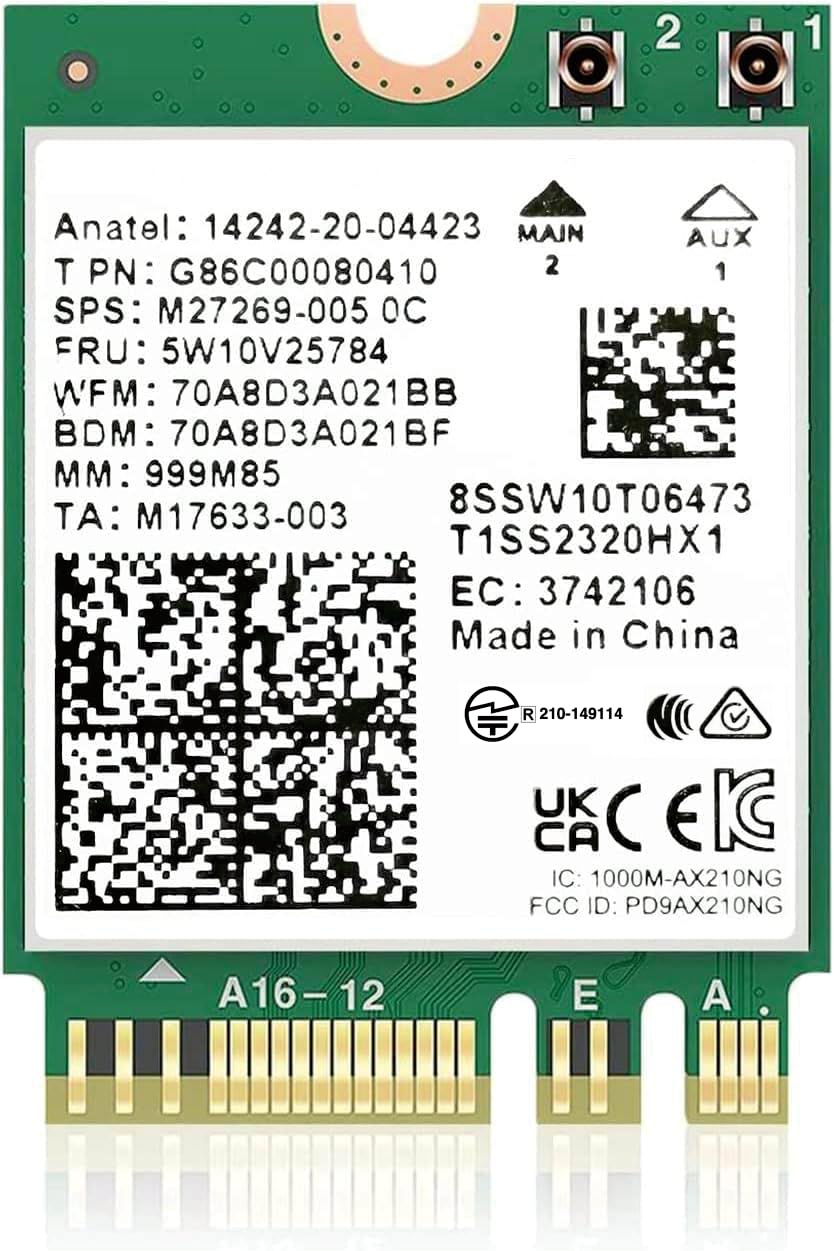
🚀 Upgrade Your Laptop’s WiFi Game — Future-Proof Speed Meets Effortless Connectivity!
The AX210NGW WiFi 6E Card is a cutting-edge M.2 wireless module delivering tri-band WiFi speeds up to 5400Mbps and Bluetooth 5.3 support. Designed for Windows 10/11 laptops and desktops, it features advanced WiFi 6E technology including MU-MIMO, OFDMA, and Target Wake Time for ultra-low latency, improved network capacity, and extended battery life. Ideal for professionals seeking a seamless, high-speed wireless experience in dense or congested environments.


| ASIN | B07SH6GV5S |
| Best Sellers Rank | #55 in Internal Computer Networking Cards |
| Brand | OKN |
| Color | White |
| Compatible Devices | Desktop, Laptop |
| Customer Reviews | 4.5 out of 5 stars 1,551 Reviews |
| Data Link Protocol | Bluetooth, WiFi 6E/6GHz |
| Data Transfer Rate | 5400 Megabits Per Second |
| Hardware Interface | 802.11 ac/b/g/n |
| Item Type Name | AX210 WiFi Module |
| Item Weight | 0.01 Pounds |
| Manufacturer | UFON |
| UPC | 650728511724 |
J**E
Affordable Upgrade That's Absolutely Worth It!
My house that I moved into is older and has a lack of cabling/coax jacks, so I setup a nice Wi-Fi 6 mesh network. Issue was that my laptop is a 2015 Dell Inspiron 14-5458. If 802.11ax mode (Wi-Fi 6) is enabled on the network, my laptop could not detect it due to the outdated WLAN/Wi-Fi 5 card. My mom's 2019 Dell Inspiron 13-7375 laptop had a defective card that would randomly be unable to detect any network. I decided to purchase a couple of these cards after verifying they would fit our device models, and needless to say, they work great! I searched for, downloaded, and installed Windows 10 Intel AX210 Bluetooth and Wi-Fi drivers prior to installing the cards. I looked up some diseembly videos and pictures to get an idea of where to install them. Once the laptops were taken apart, I made sure to disconnect the batteries and located the cards. I unclipped the antennae, pulled the cards out of their slots, and popped the new ones in. The toughest part was clipping the antennae back onto the replacement cards because the parts are very small. After around 30 minutes of strenuous effort, sweat, and frustration, I finally got them perfectly lined up to snap into the cards! Thankfully, the process was a bit quicker on my mom's laptop after tirelessly struggling on mine. After the new cards were installed and the laptops put together, I tested them out. My old laptop detected the network without issue and download speeds over Wi-Fi 6 were significantly faster than with the old card! With the new hardware, my mom's laptop consistently detected the network after reboot and when waking from sleep. All in all, this purchase was definitely worth it and for roughly $40, these newer WLAN/Wi-Fi 6 (802.11ax) cards can breathe life into the wireless connectivity and bandwidth speeds for your older laptops!
R**N
Software Installation is Fussy on my HP 17-BWX000 Laptop
Once installed completely, the WiFi and Bluetooth functions work terrifically. Windows File Explorer transfer speeds across my gigabit LAN on large files increased from about 30 MB/s to 101 MB/s...more than a 3x increase in speed and seems to be maxxing out my gigE LAN. The new card is talking to a Netgear Nighthawk WiFi 6 Mesh Range Extender EAX80 (AX6000) that is connected via ethernet cable to my LAN. Hardware installation was straightforward: A standard M.2 port, one screw, and 2 tiny little connectors for the WiFi and Bluetooth antenna wires. Software installation was a pain because I didn't do a couple critical things beforehand and so ended up with all of the previously paired BT devices getting "locked" (but unusable) by the previous driver and unable to delete them. Here's what I recommend for the installation process: 1. Remove/delete ALL existing paired bluetooth devices. 2. Turn OFF bluetooth and WiFi. 3. Uninstall the BT and WiFi drivers (AND check the box to delete the drivers.) 4. Turn the computer off and do the card swap. 5. Turn on the computer, wait for Windows to install the new drivers, and then re-pair your BT devices. For me, Windows 10 recognized the hardware and installed the BT and WiFi drivers, but I still went to Intel's website and installed the most current Intel drivers for both components.
J**.
Early Adoption - Good First Impressions!
Even as a somewhat early adopter of Wi-Fi 6 (a.k.a "802.11 AX") technology, I am really impressed by the speed and performance of this Intel AX200NGW Wi-Fi + Bluetooth 5 adapter! I have had zero problems with the consistency, speed, or reliability, throughout my entire 1400 sqft home, of Gigabit+ network file transfers, or internet access, on my Dell Inspiron 15 5570 laptop. The Bluetooth 5 also works flawlessly, and simultaneously with the Wi-Fi, albeit sharing the same overall bandwidth pipeline. For example, surfing the net and using a Bluetooth mouse and/or speakers is well within the capabilities of this card. But all that being said, Wi-Fi 6 is still relatively young at the time of writing this review, and hence I recommend that for most people that don't feel comfortable performing "surgery" on their laptop, or paying much more than the price of this adapter for a certified technician to do it, and want to "set-it-and-forget-it" (a.k.a. leave in for the entire life of their machine) like I sometimes find myself contemplating, wait until the Wi-Fi 6 technology matures a little bit more, and it is more refined, for optimal efficiency, and better max speeds, at least on the hardware side of things, so you won't find yourself regretting your decision when a faster and more capable adapter comes around in the "not-so-distant" future. But if you need or "want" bleeding-edge Wi-Fi 6 technology today, and have the correct interface for it available on your laptop, you really can't go wrong with this adapter. It's an excellent value for the money!
B**S
Easy install, fast speeds! Great upgrade
Ben says: Nothing like a quick YouTube tutorial to make you feel like a tech genius. I installed this Wi-Fi 6 card in my laptop about a year ago, and it’s been flawless ever since. No drops, no weird disconnects — just solid, fast, reliable internet. The install was straightforward, especially after watching a quick tutorial online, and it immediately improved my connection speeds. If your laptop came with one of those underwhelming stock Wi-Fi cards, this is an easy and affordable way to breathe new life into it.
F**N
Real nice upgrade, but had to remove it.
Do yourself a favor and download both the wifi and bluetooth drivers from Intel FIRST before you change the wifi card out. Then you'll have the drivers ready to install after putting the computer back together. FYI I have a Windows 10 with Core I7 - 7Gen!!, and the wifi card is working great. Update: After experiencing some random BSOD and tracing it back to the date I installed the wifi card, I uninstalled it and no longer get BSOD errors. Perhaps there were complications with the electrical components.
R**L
Great speedy upgrade for WiFi signal
I recently got a new Dell Inspiron 15 (Ryzen 5-7530U) laptop, it has nice specs, however I didn’t like some internal components, specially the WiFi card, it came with a Realtek RTL8821CE which only supports 1-stream 802.11ac protocol with a max connection speed of 433Mbps, so I knew I had to upgrade it to a better one like this Intel AX210 card: PROS - Came well protected. - Includes screw and protector plate. - Just plug & play (didn’t need to download drivers on Windows 11) CONS - The main disadvantage would be you need tech skills to install it. If you have doubts, consider someone else to do it for you. MAIN SPECS - Wi-Fi 6E (802.11ax) - 2x2 MIMO streams - Target Wake Time (TWT) to increase laptop battery life. - Bluetooth 5.3 INSTALLATION Installing this card involves: - Removing 8 screws holding the laptop bottom cover. - Locating the WiFi card and removing the screw holding it in place. - Unattach the antennas. - Swap the new WiFi card in. - Connect antennas, consult your computer manual, as there is no standard on the color of the main and aux cables, for my laptop, white corresponds to MAIN connector and black to AUX connector. - Secure WiFi card with protective plate and screw. - Put back the laptop cover and secure it in place. DRIVERS After booting the laptop Windows 11 recognized and installed the drivers automatically, I just had to enter the WiFi credentials again and it connected flawlessly. BLUETOOTH 5.3 I have a BT mouse connected to the laptop and all I can say is that it works. But BT 5.3 offers a more robust, power-efficient, and user-friendly Bluetooth experience compared to Bluetooth 5.0, especially if you use it to connect audio devices. CONCLUSION I now have a speedy 1733 Mbps connection, as I have a WiFi 5 Synology RT2600 Router that I got back in 2017, I’m happy with the upgrade, if I ever upgrade my router I know the laptop will support WiFi 6.
T**S
Wifi 6E much faster than 5
doubled my throughput from 9560, and almost tripled from ac3168. easy to install. working on an old haswell desktop via pcie m2 wifi carrier, and an older dell g7 coffee lake.
T**T
Best wifi upgrade in 2020
I've an Asus ROG MAximus X Hero (WIFI-AC) motherboard. Its realtek wifi card was dropping 7% of all downlink packets. After a few years, it likely started failing. I had to unscrew a few things on the MB to get to the card, and verify this was an M.2 wifi+BT card. I found the intel AX200NGW card is the current best, has good driver updates, and supports 802.11ax (Wifi 6) too, not just 802.11ac (Wifi 5)and older wifi tech. It's also BT 5 or 5.1. And the wifi card (assuming the OS does it too and the access point also) does support WPA3. So it's quite future proof. performance: same antenna as before: I get up to 250Mbps on AC (5 GHz high band). Previous card did 150Mbps max download. Also no packets loss. So this works really great. The router is an Asus 5300AC. 2 stars for ease to install: all these cards are tiny. The size of my thumb (I have large hands). The antenna connectors are less than 2mm wide, and in the enclosure for the cards that is on my motherboard, it was really hard to connect the new wires. Even with a 10x magnifying loupe and electronic tweezers. i.e 20 minutes with many chosen words, but I got it done. If you do not have great vision and a magnifier, get someone else to do the upgrade for you. You will have the same problem in any laptop as the antenna connectors on the card are the same no matter what device this goes into. Another option: buy a PCI-E card that includes this chip, so it comes already installed :-)
Trustpilot
2 days ago
1 month ago