


Buy anything from 5,000+ international stores. One checkout price. No surprise fees. Join 2M+ shoppers on Desertcart.
Desertcart purchases this item on your behalf and handles shipping, customs, and support to Poland.
🚀 Scan smarter, faster, and wirelessly—your office’s new productivity powerhouse!
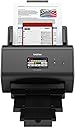
The Brother ImageCenter ADS-2800W is a professional-grade wireless document scanner designed for mid to large businesses. It delivers ultra-fast duplex scanning at 40 pages per minute with a 50-sheet auto feeder, supports multi-page and jumbo document scanning, and offers versatile connectivity options including Wi-Fi, Ethernet, and USB. Integrated image optimization and broad cloud compatibility streamline document workflows, while robust security features and cross-platform support ensure seamless, secure operation. Backed by a one-year warranty and lifetime technical support, it’s engineered to transform your document management experience.


| ASIN | B01AD5ESEA |
| Best Sellers Rank | #300,971 in Office Products ( See Top 100 in Office Products ) #366 in Document Scanners |
| Brand | Brother |
| Built-In Media | Scanners |
| Color Depth | 24-bit |
| Connection Type | Ethernet, USB |
| Connectivity Technology | Ethernet, USB |
| Customer Reviews | 4.5 out of 5 stars 375 Reviews |
| Global Trade Identification Number | 00012502642787, 04977766755290 |
| Greyscale Depth | 8-bit |
| Item Type Name | ImageCenter ADS-2800W Document Scanner |
| Item Weight | 10 Pounds |
| Light Source Type | LED |
| Manufacturer | Brother Printer |
| Media Type | Business Card, Photo, Receipt |
| Minimum System Requirements | Windows 7 |
| Model Name | ImageCenter |
| Optical Sensor Technology | CIS |
| Resolution | 300 |
| Scanner Type | Document |
| Standard Sheet Capacity | 50 |
| UPC | 012502642787 |
| Warranty Description | 1 year warranty |
| Wattage | 27 watts |
A**O
Crazy Fast Standalone Network Scanner
Bought the ADS 2800W after a lengthy research. I needed a reasonably fast scanner that can be moved around and plugged into my network as a standalone device to digitize documents in file cabinets at different locations. It had to be reasonably fast and feed reliably multiple paper sources and formats, including receipts and biz card. Needed the scanner to upload to a folder on a Qnap NAS and have OCR automatically performed by a static Windows 10 workstation. The printer had to have TWAIN/WIA/ISIS drivers to run 3-party apps so that I am not at the mercy of a single vendor. The final hardware-Software pairing was with Nuance Power PDF Advanced 3, which had the automatic OCR feature at a reasonable price. ABBYY Fine Reader Corporate does the same but costs 2-4 times more (depends on where you buy it), with relatively similar OCR accuracy. Since all OCR conversion to Searchable PDF is in the background by Power PDF, conversion speed was a non-issue especially on a i9-9900K CPU. Idea is to do bulk scanning to different customized profiles so that I can set different file prefixes for different categories of documents (receipts, statements, invoices, manuals etc). Customization/configurations was done via web browser, very straight forward but took a while to find the default password, which is "initpass". The profile customization is very flexible, only thing missing is the ability to un-select the Multifeed Detection in the profile, which you may want for odd-ball paper or 2-1 scan using the plastic sleeve. Scanning via the touch screen to Network into image PDF, the average speed is around 41-42ppm (82-84 ipm) @ 300 dpi color duplex medium file size. No lag between mix of double sided printed documents and single sided sheets. Time between pressing START and the roller feeding is about 1 sec, transmission at end of scan to NAS seems to be unnoticeable on a wired network as it is roughly done by the time I pull the papers from the out tray. The Apps that came with the scanner I ended up uninstalling. Its OK for general use, just not for my specific application. Have to say Paperport's UI can benefit from some updating, looks really dated. Printer came with K version firmware, updating to N version was simple. Not much YouTube reviews on this scanner and spec is conflicting, with many places still listing it as 30ppm instead of 40ppm. Overall, couldn't be happier and relieved by my choice to go with ADS 2800W. Very well made and great performance to my surprise, I was really hesitant to buy this unit (thus the lengthy research) as the price to feature+performance was a bit too good to be true, now I am a convert to Brother products. Works great for my specific needs although it was a hair over my budget. The best feature loaded and commercial grade performance scanner for the price. Great job by the scanner design team @ Brother!
M**L
Amazing Scanner
My wife and I bought this to replace the scanner that was on one of those cheap little all-in-one deals. You know the kind: It has a scanner on the top that accepts a single (one-sided) page at a time and really works best for scanning photos ... not documents. It died, and so we started shopping for a replacement. See, the problem is that we scan a _LOT_ of documents. We homeschool our (three) children and I'm a big IT Geek (a programmer) meaning I like having all of my paper documents backed up on my (very nice, and very expensive) server. Scanning has always been a real pain and a chore for us. One side of one sheet of paper at a time. Moreover, we had to drag out a USB Key so that we could scan each document to it, then move that to one of our PCs so that we could pull the document off of the USB Key and move it onto the server. A real chore that was super time consuming because of all of the manual intervention involved. This scanner has absolutely everything that I wanted: 1. It is WiFi Capable (and offers manual configuration instead of only WPS - this is a real gem, as I don't use a store-bought router, and my Ubiquiti Access Point absolutely does not offer WPS WiFi configuration!). 2. It can scan directly to a Network Share. Oh sweet loving heavens, I cannot tell you how much time this single feature alone has saved me in moving files off of USB Drives and onto my Network Drives. 3. It is lightning fast. Seriously, with it's other features I can just turn the scan on and walk away - which is amazing - but this sucker is so fast that ... well, you'll see. 4. It just works. Very - very - minimal setup even for me, and I'm betting my setup is far more advanced than your average user. I set up multiple profiles for one-button scanning of different document types. It will save them automatically to the correct network drive based on the profile for all of our document types based on just one button. Default settings for how it scans and saves each page are configured, and I can modify them prior to initiating a scan job easily and intuitively. Let me give you the best example that I can of how wonderful this little machine is. Among all of our homeschool <stuff>, we have text books, answer books ... and test books. I used our History test book as a trial case: It had 60ish (double-sided) pages, wherein each page equaled a single test (small test, kind of stuff we hand out weekly to the kids). The settings I used were to scan each double-sided page as an individual PDF document (so we'd have one PDF for each page - or roughly 120 PDFs at the end) and save them all to the predetermined network drive. With our previous scanner, we could scan 5-10 pages before it would just start crapping out on us and telling us the USB Drive was full (it wasn't). And it would take ages. I sat the entire 60ish pages into the scanner, hit a couple of buttons, and somewhere around 60 seconds later (I didn't actually time it, I didn't think to) it was done. No muss, no fuss, and I now have 115 PDFs in my network share ready for use. It ain't cheap, but we will absolutely get our money's worth out of this thing. If you are looking to scan documents (not pictures), scan a lot of them, not have to hassle with configuration, setup, fiddling with USB Keys all the time, and for the thing to just work no matter what you throw at it ... then this little guy will do the job. Cannot stress enough how happy I am with this thing.
U**N
Works with linux and as standalone scanner!
Thanks Brother! Latest linux driver works perfectly with simple scan on Ubuntu. Less than one day installed, but so far, it does everything I expected. Setup of the Apps (gdrive, evernote, etc.) was a breeze and allows you to scan without connecting to pc. Update: Tip for scanning receipts: Scanning a flimsy receipt is not pleasant with this scanner. This isn't a knock on the scanner though. For the most part, the scanner will scan receipts fine, but its cumbersome to load long receipts in a scanner - especially if they are wrinkled. To be clear this is not a negative on this scanner, but just the dynamics of feeding a long, narrow and flimsy sheet of paper in the feeder. I'm sure the included carrier feed would circumvent this issue, but it requires and extra step which isn't practical for me. In my effort to find the best cloud destination for my scanned items, I discovered the nuances between using google drive and evernote. Although both services scans receipts via the mobile phone app without issue, I narrowly decided google drive is much quicker at the initial capture. It appears google drive app on android does post processing which makes it faster at capturing the image than evernote. Conversely, evernote attempts to outline the receipt in real time, which requires you to have to wait for it to recognize the receipts border before capturing. Although this is impressively fast, most of the time it's still significantly slower than google drive scan solution, which is as quick at taking a photo. The other benefit of using a mobile app to scan your receipts is that you can obviously scan the receipt as soon as you receive it (please don't do this in the checkout line though) vs having to wait until you get to your scanner. I'm loving this solution for receipts as it making going paperless that much more effortless.
M**F
Versatile Wireless Scanner, Best for Lots of Short Jobs
=====UPDATED for 2024===== I am STILL using this scanner. A couple of things have improved over time, and some have not. -Improvements- 1) The scanner will now scan between eight and ten pages before pausing (due to full scanning buffer). I am sure this is a change in the software since the scanner didn't just "grow" more scanning RAM over time. This small improvement makes a big difference when scanning large documents. Easier to batch the pages into groups of ten pages and use the "Add Pages" button in the software to scan the batches. Much faster that way. 2) The Brother iPrint&Scan software stability on macOS has most definitely improved over the years. Far fewer unexpected crashes and problems. Far more stable. I would say one crash every four to six months (if that) versus what I was experiencing originally with one crash every three to five scans. -What Hasn't Changed- A) Still no functional TWAIN or WIA driver on macOS. Key word there: functional. There absolutely is a TWAIN driver for macOS on their website, but it still is not recognized by Adobe Acrobat or Microsoft Office. B) Thermal paper still frequently takes a bit of effort to get the pickup rollers to grab on. This is a physical hardware design issue and not a software one, so I wouldn't expect it to change, but it is still a minor point of frustration. I have figured out that if you can take some of the curve out of the thermal paper, the rollers do tend to get a better grip on the paper. -Summary- After six plus years of use, the fact that I am still using this device and it is still completely functional is saying something. In fact, I've even considered getting a newer model just to see what the updated features are like; not because there is anything wrong with this one (because there isn't anything wrong with this one I haven't already pointed out). Absolutely still pleased with this device. The relatively few nits make no change in 4-star rating necessary. This is a solid workhorse that keeps on working day in day out for years! In today's tech hardware world, that is extremely rare! =====ORIGINAL REVIEW===== The Brother ImageCenter ADS-2800W is a good, reliable wireless scanner with a few minor drawbacks. I have now been using the printer for several weeks with a reasonably consistent and significant scanning workload each week. For clarifications on my environment: - I am using this device on my iMac Retina 5K late 2014 model running macOS High Sierra - I am using the latest available version of Brother's scanning software, Brother iPrint and Scan (27-Oct-2017) - I have updated the scanner's firmware to the latest version (01-Feb-2018) Here is my feedback from my use experience: PROS 1) Fast -- for the first seven pages 2) Excellent output quality 3) Software is reasonably modern and simple to use 4) Wireless (Wi-Fi) scanning is flawless 5) Exporting documents into other applications is pretty straightforward 6) Works on a wide variety of source documents for scanning 7) Scanner is PARTICULARLY good at scanning VERY LONG paper items/receipts CONS A) After seven pages, the scanner slows down SIGNIFICANTLY B) Scanner cannot be used to scan directly into software like Acrobat, Office, etc. (*) C) Scanner software (Brother iPrint and Scan) is not entirely stable D) TWAIN drivers do not report as visible/available to other software (see B, above) E) With thermal paper source documents (receipts, charge slips, etc.), you will need to hold them down in the input tray and push them slightly into the scanner for the rollers to pick up the documents If it were up to me (and it isn't), I would say this scanner is $100 more expensive than it should be, but I cannot deny the overall positive experience I've had with the scanner. About the pros and cons: 1/A) Pro #1 and Con #A are what I consider the biggest selling point AND disappointment combined. It is nice that the scanner has a document feeding area where you could stack up to 50 pages in it and let the scanner work its way through all the document pages. For the first seven pages, watching those pages scream through the scanner gives you hope that your scanning job will be done quickly. Then, as soon as page eight slides into the scanner, I am instantly transported back to the days of the first inkjet printers where the heads made a (slow) pass across the paper, the printer then advanced the paper feed about 1/4", then the heads passed across in the other direction, then another advance, and so on. Starting with page eight, it literally took almost 45 seconds per page (dual sided, but still) for each page to be scanned. It didn't matter if the pages were all black and white text or color photos or anything in between. And this behavior always starts with page eight. Never earlier, never later. It got to the point where I broke out long documents into seven-page clusters and let each one feed through and complete, then added seven more pages to the scan. That was ultimately far faster than leaving the whole 50 pages in the hopper and letting it grind through. I understand that, probably due to the design of both the scanner and the scanning software, the scanner is buffering the scanned pages (again, both sides) at a resolution of 300x300, and only after the scan is complete will it let the scanning software (Brother's iPrint and Scan app) generate the scanned pages. Great for a few sheets, a very poor model for larger documents (which this scanner is specifically positioned as being good for). 2) Excellent output quality. Not more more I need to say here. 3) Modern, easy to use software. Having seen the Fujitsu ScanSnap software and some other packages, the Brother iPrint and Scan software is actually a pretty good software package. I just wish all of these scanner manufacturers would stop reinventing the wheel and let professional software companies like Adobe do their thing instead. But the Brother software is clean, simple, and functional. 4) WiFi scanning works really well. Fast and efficient and I've never had to doubt if the wireless scanning part was working or not. No pauses, no surreptitious/sudden/unexpected disconnect messages. 5) While the scanner WILL NOT be visible to Adobe Acrobat or Microsoft Office apps (at least not on the Mac), they do give you an option to take the scanned image and "send" it to an app of your choice (basically open the app with the scanned content already present). If they can do that, though, why not take the last step and let Adobe capture it directly from the scanner? Makes no sense, but at least this "send to" function works as I would expect. 6/E) Does work on a variety of source material, from the thin thermal receipts from gas stations, grocery stores, and charge slips, to large multi-page letter and legal documents. I have noticed, however, that scanning those thermal receipts requires a small bit of extra effort. Even though they are slotted in the input tray (automatic document feeder) and the scanner beeps to acknowledge that something has been inserted, the scanner will/does not pick those receipts up; the rollers will spin until the scanner gives up and declares there to be a document jam (there isn't one). The way around this is to apply a minor amount of fingertip pressure against the thermal paper by pushing down and in towards the scanner. Doing this will have the scanner pick up the thermal paper every time. B/D) As mentioned previously, this scanner WILL NOT allow you to use the native scanning functions built into Acrobat, Microsoft Office apps, or other apps that would normally allow you to access a scanner to bring scanned content into your current working document. There are TWAIN drivers for this scanner, I have installed them, rebooted, and checked with my apps that support TWAIN, but they do not see this scanner. There are no WIA drivers either. For the money that this scanner costs, there is absolutely ZERO reason why they (Brother) cannot/should not make this happen. They just plain simple choose not to allow this. C) On multiple occasions, the scanning software (Brother iPrint and Scan) has crashed for no apparent reason. These crashes are random in that they are not tied to a page count; sometimes it will crash after two pages, sometimes it will take 30 or more in a session, and some times not at all. I am noticing that these crashes are occurring less and less, though without any software updates, I am unclear as to why they are not happening as often. 7) I have successfully scanned very lengthy retail receipts from various locations (Bed, Bath & Beyond, Costco, etc.) with no issue. I do need to change some of the settings to allow for a long, narrow paper source prior to scanning them, but they always scan correctly when I do this. This has been a marvelous thing to be able to scan long documents and paper longer than U.S. Legal.
M**Y
OCR Function Requires Windows
Works with Linux over USB and over the network. This thing is so feature-packed it's hard to decide where to start. It exceeded my expectations! It's clearly designed to work in a small office with multiple users. It works well over a network, it even enables multiple levels of encryption -- it can transfer over SSH (SFTP) by setting up the usual SSH authorized keys AND it can encrypt the (PDF) files. It allows you to set up HTTPS for a secure network-based administration interface. It can be configured to work with your users via your LDAP/Active Directory system. It also keeps counters for documents scanned. The network configuration interface is a bit clunky at times -- setting up the scan profiles is time-consuming -- I can't copy one scan profile into another and then change one setting (like the destination directory and file name). Allows you to set up "shortcuts" on the LCD panel so it takes as few as two taps to start scanning. All of that said, I've had a few cases where the auto-deskew feature failed. The scanning element got dirty somehow (dust I suspect) and the resulting scans had vertical bands -- it would be nice if there was some way to detect that (an IR sensor like that used in some negative scanners perhaps?) and pause the scans or even auto-clean itself. I was really hoping to use the OCR feature but that seems to require Windows integration -- the Linux proprietary drivers are limited to the old SANE standard as best I can tell. The speed with which it scans at reasonable, non-photographic DPIs and the reliability of the automatic document feeder are excellent. It jams rarely, jams are easy to clear, become easy to anticipate, and after a jam it allows you to continue scanning rather than forcing you to start all over. It do wish it accepted somewhat wider pages as some things are a few inches wider than 8.5 inches.
M**S
Works as a standalone scanner to USB key
I'm not writing reviews more than once or twice/year, but this time I really feel like I have to. I'm a long time Linux user. While I do own a Mac, it's a laptop and it's for the road only and there's no way I'm going to plug a USB cable into a scanner at home. All boxes in the home run Linux. So drivers have been a nightmare most of my life. I don't buy devices I can't run. I'm not a pedant, we really just don't have a Windows box here. So as you can imagine, a great deal of research goes into making sure the few devices I do own work with a Linux box, standard formats, or stand on their own. If you're one of us, you understand. I'm also at a stage of life where I just don't have the time to fiddle with my computers too much anymore-I'd rather be doing something else than to download and update poorly written open source drivers for commercial things I need. So basically, I was looking for a scanner that I will use for a long time, that is, at minimum: - Scans to a regular USB key - Does not require a computer to operate - Can produce PDFs directly, without software - Is fast enough to scan away 100's of pages of documents I hesitated for a very long time between getting the Brother ADS-2700W or the ADS-2800W. I simply couldn't ascertain whether the smaller 2700W was able to operate on its own, and could be configured on the network via an HTTP interface (again, no drivers). It seems like the cheaper little cousin of the 2800W. They've made an HTML manual only. The 2800W and its family look the same, and they're sold under the umbrella of "small business", they look more serious. Anyhow, not being sure, I bought the 2800W. So this 2800W arrived in the mail today. In less than 5 minutes, I did the following: - Unpacked and plugged in - Turned it on, did not configure anything - Plugged a USB key into it - Put a 3 page document into it - Selected "Scan to USB" from the top-level menu - Put a document into it and pressed its "Start" button. - Moved the USB key over to my computer - Witnessed on my computer (no drivers) a beautiful 300dpi PDF scan of all my pages, both sides and perfectly aligned. It works. I'm really quite satisfied already. This is a very basic review, but I know for sure there are others like me looking for a standalone device, and here I confirm this is one.
E**E
LOTS of "processing" time for each scan reduces speed DRAMATICALLY + many "Server Errors"
I purchased this scanner to digitize my paperwork into Evernote. I have tried multiple workflows with it, but I am not happy with this scanner. The shortcuts are nice, and the scanner is very flexible and versatile. The problem is that the scanner takes so much time to process every scan that it becomes worthless for doing multiple documents at once. It took literally 9 minutes 56 seconds to process a 26-page document, during which time the scanner is unusable! Whenever scanning to a computer, the Brother software is so slow (but a mandatory middle-man when scanning to a computer) that it actually slows the scanner down to 8ppm after the first six sheets. That isn't processing time, that's actual 8ppm SCAN SPEED! Maddening!!! That's while running on a $3600 MacBook Pro with an 8-core i7 processor! It does scan at full speed to local network destinations. After each document, the scanner (and the computer, if OCR is enabled), process for sometimes several minutes. The end result is that it takes about 42 seconds to process and OCR a single double-sided sheet, and a whopping 10 minutes for a 26–pager. I have full timing results below. Additional faux pas: 1) Documents must be loaded upside down and backwards. Other ADF scanners like iX500 allow you to place documents normally. 2) When uploading to Evernote, the "single-page" option does not create a separate note for each sheet; rather, it creates one note and adds multiple PDF files to it. 3) The settings are really inconsistent, meaning that options like "auto-deskew" are only available for some scanning destinations or modes. The user's manual even has a matrix which lists every scan option and when it is available, but it did not seem to actually align with my device. For instance, on a Mac you cannot scan to OCR via USB! 4) Starting a scan to a computer FROM the device is limited to one computer. Other computers can PULL scans from it, but can not initiate scans from the control panel of the device. 5) The device regularly throws "Server Error 104" when trying to upload to any cloud service. There is no mention of this error in the manual, or even on the online help center. It fixes itself after 5–10 minutes, but it really interrupts my workflow. This happens roughly every thirty or forty minutes if scanning continuously. Restarting the unit does not help. It does incredible work, though—the end result is gorgeous, and its automatic corrections are on-point. The OCR, when it works, is also pretty robust. Sometimes it will fail on an entire document, and do something crazy like omit every single space leavingadocumenthatreadslikethis. Additionally, OCR is very limited: It will only perform OCR when scanning directly to a computer (over local network only, not USB if on Mac!), or to web services like Evernote. The OCR is processed on the computer (except when uploading to web—then it is done server-side), as the scanner will "finish" the scan job, but it will not show up on the computer for potentially several minutes (depending on length), during which the Brother app will hog a ton of system resources. It will not perform OCR when scanning to network locations like a shared folder, S/FTP, SharePoint, or direct-to-email. OCR makes the scans take longer. Substantially longer, like 2.9ppm longer. The OCR happens AFTER the scan is complete, not concurrently. This process takes FOREVER, making the scanner entirely unusable for up to several minutes. When scanning OCR to a computer, the physical scan speed is the same up to 6 sheets, but drops dramatically as every sheet thereafter takes about eight seconds to scan (versus 2 seconds normally). This drop is unrelated to OCR; it is induced by the Brother software on the computer not accepting scan data fast enough over WiFi. The WiFi speed is not at issue here, it's the software. I would test it with USB, but the iPrint&Scan software *does not connect over USB*, and the ControlCenter2 software—which is not retina-ready and is not compatible with the latest macOS—and only works over USB, does not allow for OCR to a PDF (it will OCR to a plain text file, RTF, or HTML file)!!!!! WTF! After the physical scan is completed, the scanner will "process" the file before delivering it to the computer, and the computer will process it for several minutes more before issuing the PDF. This process depends on the length of the document and, for example, will take about 45 seconds extra to process a single double-sided sheet, and 7 minutes extra to process a 26–sheet double-sided document. During the "on-scanner processing", the scanner is unusable. TIMING RESULTS: I timed the unit scanning a 26–sheet document, double-sided with mixed images and text, and one blank page. I scanned it over Wi-Fi to my Mac running the Brother software, and used the OCR preset with features like "auto-deskew" and "auto-color" enabled (these don't seem to affect scan speed). The scan took 9:56 seconds to complete (5:03 on-scanner, 4:53 on my computer) making an effective 2.9ppm. I ran the same scan to my computer without OCR, which took 5:35 to finish (about the same), and was only processed by the computer for about 3 seconds. Then, I ran the same scan directly to a network folder, bypassing Brother's software: the whole scan completed in just 1:05 (effective 24.5ppm, yay!). When I ran the same scan directly to Evernote, with OCR, the process took 8:19, but the scanner was unusable for that entire duration (versus just 5:03) and the resulting file was 17.5 MB rather than 2.4 MB.
N**N
The best sheetfed scanner I have found
This is a review for the ADS-2800W. I was concerned about this product based on the reviews, but it really stands out compared to the other two sheetfed scanners that I tried: the Epson FF-680W and PlusTek eScan180. Unlike other reviewers say, the processing time is not bad and the scanner is quick. The lower the file size, the shorter the processing time. The Epson scanner has no controls from the scanner itself and cannot scan to a network location as far as I can tell, so it requires a computer to be connected and does not work as a stand alone device. The PlusTek scanner has a nice big touch screen on the device, but has no web-based management console, so all the settings have to be changed directly on the device, which can be cumbersome. The scan quality is also better for photos than for documents (ever crease and wrinkle in documents show up in scans and there is no way to remove these). The Brother scanner is MUCH faster than the PlusTek. It scans with efficiency and speed. Paper generally feeds straight, but in the event it is crooked, the scanner automatically straightens the image, and does an excellent job of it. The scanner has a great web console that allows users to set up quick buttons on the scanner for quick access to customized settings and network locations (these are called "profiles"). The documentation is poor so I had some frustration figuring out how to get the web console to work, but once I figured it out, it works really well. The scanner also feeds smaller papers, like receipts and checks, quite well. The only downside is that this scanner does not perform OCR when saving to a network location, but I have not found another scanner that includes this capability. Overall very happy with the scanner for speed, reliability, and customizability with the web management console. The biggest downside of this scanner is the poor documentation and tech support. It is important to know that the default password on the web console is "initpass" For some strange reason, this information is not included in the manual anywhere. I spend 30 minutes on the phone with tech support and got nowhere. Finally I located the password with a web search.
E**A
Muito boa.
Gostamos, está atendendo a demanda que precisamos.
G**Y
Meets and Exceeds Expectations!
Very impressed by the fast shipment, arriving within 4 days! Product meets and exceeds expectations. I do all my scanning from custom links I've created in the Brother app on my desktop (simplex, duplex, colour, etc), and save all my pdf's in searchable text mode. Since this works so well and the machine is small enough that I can keep beside me on my desk, I haven't bothered to configure shortcuts on the actual scanner unit. The scans are quick, including colour. Extra time is required for processing by the computer to make the pdf's searchable. Long 2" cashier receipts scan well too, although because the paper is so thin, they tend to move out of alignment in the document tray as they are being pulled through the scanner. The auto deskew feature works great to straighten these scans. Scanning photos as TIFF's look grainy compared to scanning them as PDF's or other graphic formats - haven't played with it enough to figure out why. Scanner has the option to select Multifeed detection which shows up as a paper jamb. This requires manual paper removal and then starting the scan process again on those remaining pages (not automated to correct on its own like the more expensive models). This feature can be deselected to print thicker, multi-layered cards without jamming. Overall, am very pleased with this scanner. It will save me a lot of time compared to using my All-in-One printer/scanner machine that was very slow in comparison.
A**N
Cher mais rapide
Cher mais rapide
R**O
Super-Scanner
Sehr gut zu bedienen, super Qualität, sehr schnell und so klein, dass man ihn locker auf dem Schreibtisch stehen lassen kann
C**N
Excelente
Excelente producto, ahorra muchísimo tiempo y es muy fácil de usar si tienes los conocimientos básicos de informática, es muy veloz y ocupa poco espacio. Super recomendable.
Trustpilot
1 week ago
1 month ago